GTA 6 best settings and the HDR fix
GTA 6 runs at 30fps with no performance mode, so the biggest wins are in the controls and HDR. Lower the stick dead zones, pick your targeting mode, and set HDR in-game, not on your console.
- Controller: drop both dead zones from 4 toward 0-1.
- Gameplay: choose Partial, Free Aim or Lock-on targeting.
- Display: keep motion blur unless it bothers you.
- Camera: lower camera shake and bob if you get motion sick.
- HDR: start at Max Brightness 2000, Black Levels 20, Paper White 35.
Is there a performance mode?
No. GTA 6 runs at 30fps on both PS5 and PS5 Pro, and the settings have no performance or quality mode to choose. That's why some settings, like motion blur, matter more than usual.
How do you fix HDR in GTA 6?
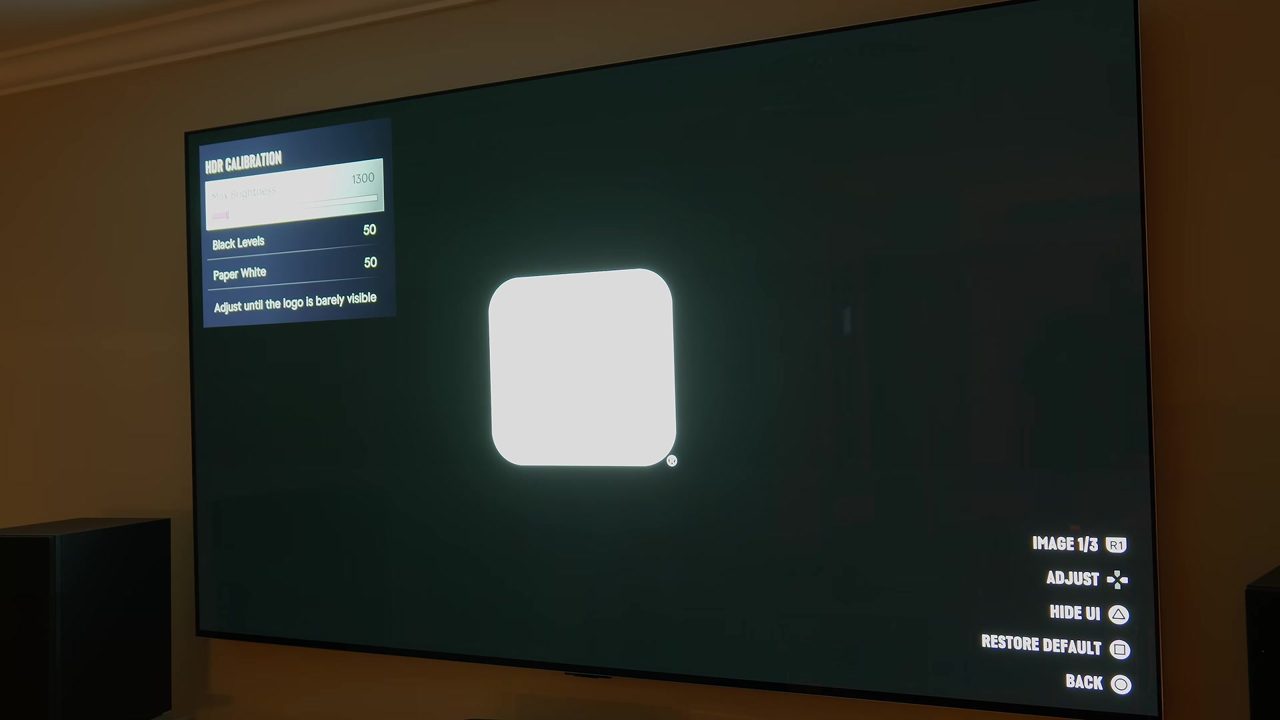
Set it in the game. GTA 6 ignores your console's HDR calibration and uses its own three sliders: Max Brightness, Black Levels and Paper White. The catch is that they affect each other: lowering Paper White below its default of 50 also lowers the real peak brightness in-game, even though the test screen still looks correct. So the test screen can't be trusted on its own.
A good starting point for HDR displays that reach 1,000 nits or more:
| HDR slider | Start at |
|---|---|
| Max Brightness | 2000 |
| Black Levels | 20 |
| Paper White | 35 |
For Black Levels, it's best done in a dark room: start at 0, hide the interface, and raise it until the checkerboard behind the logo is just visible.
Settings worth changing
Step 1
Lower the stick dead zones
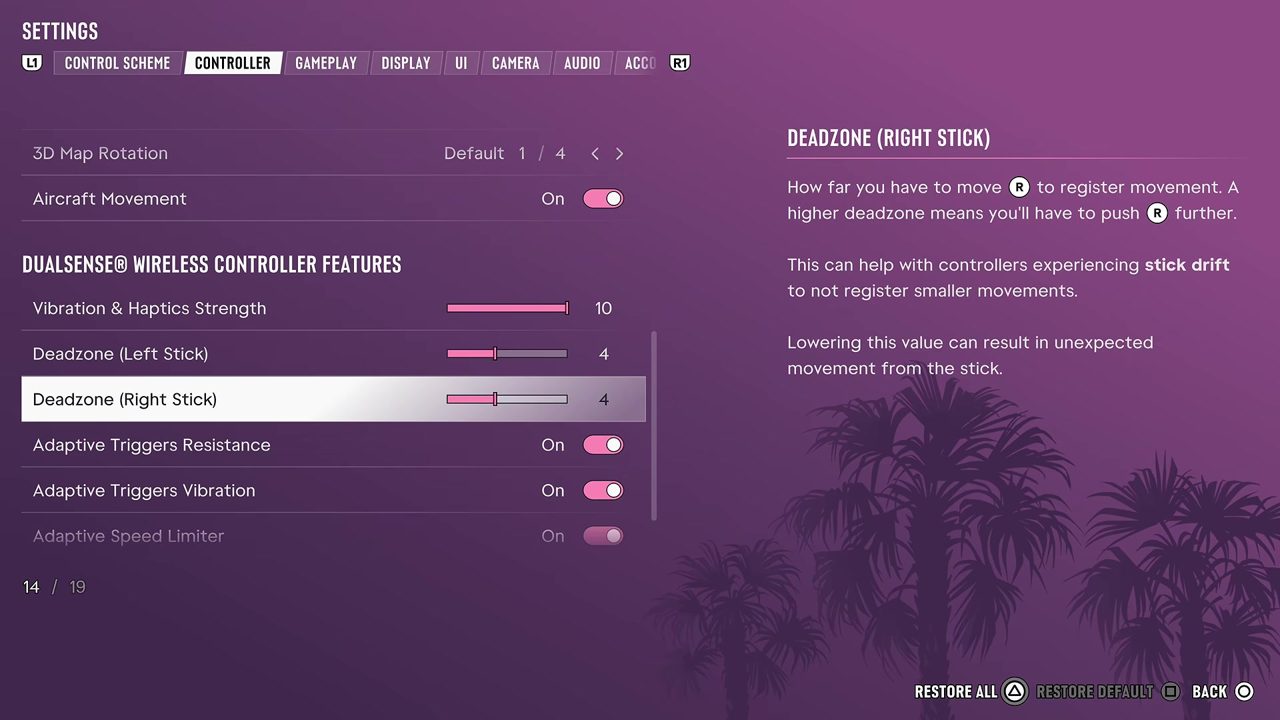
Settings → Controller. Both sticks default to 4, which means you have to push them a fair way before anything moves. Drop them toward 0 or 1 for snappier aiming and camera. If the camera starts drifting on its own, raise it one step.
Step 2
Pick your targeting mode
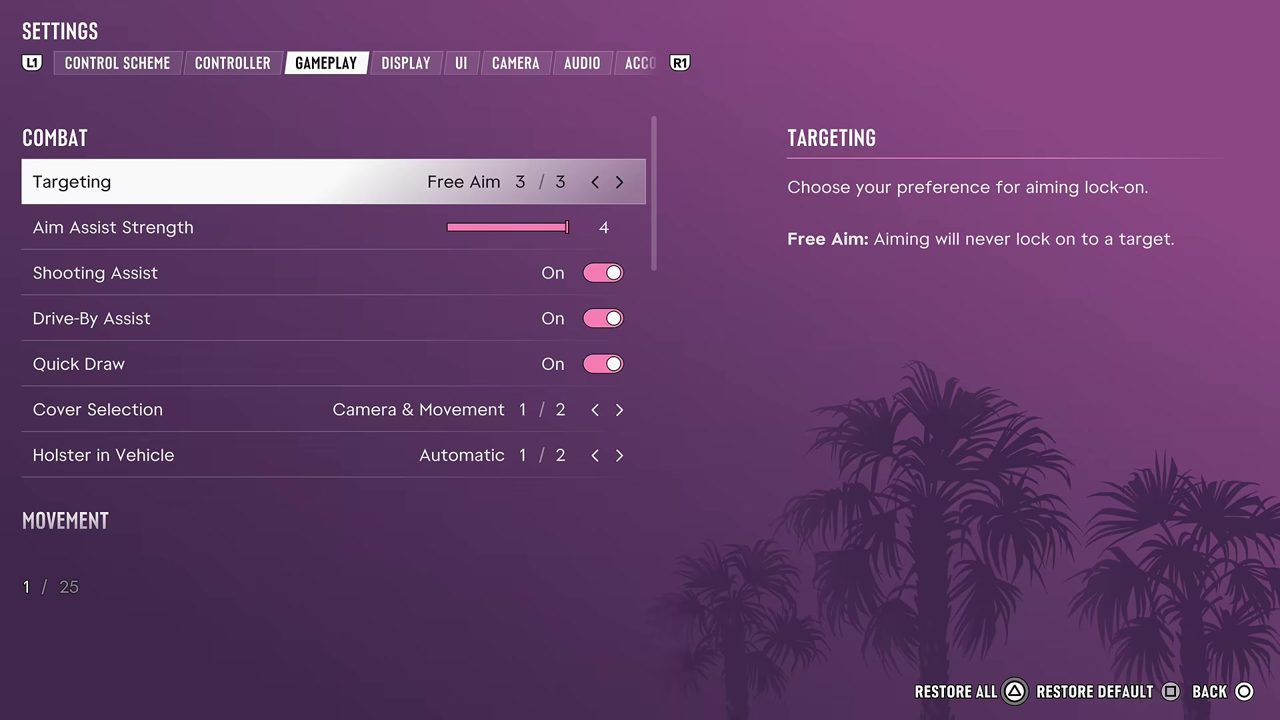
Settings → Gameplay → Targeting. The default is Partial: it pulls your aim toward a target without locking on. Free Aim never locks on; Lock-on always grabs the nearest target. If Partial pulls you to the body when you want headshots, lower the Aim Assist Strength.
Step 3
Decide on motion blur
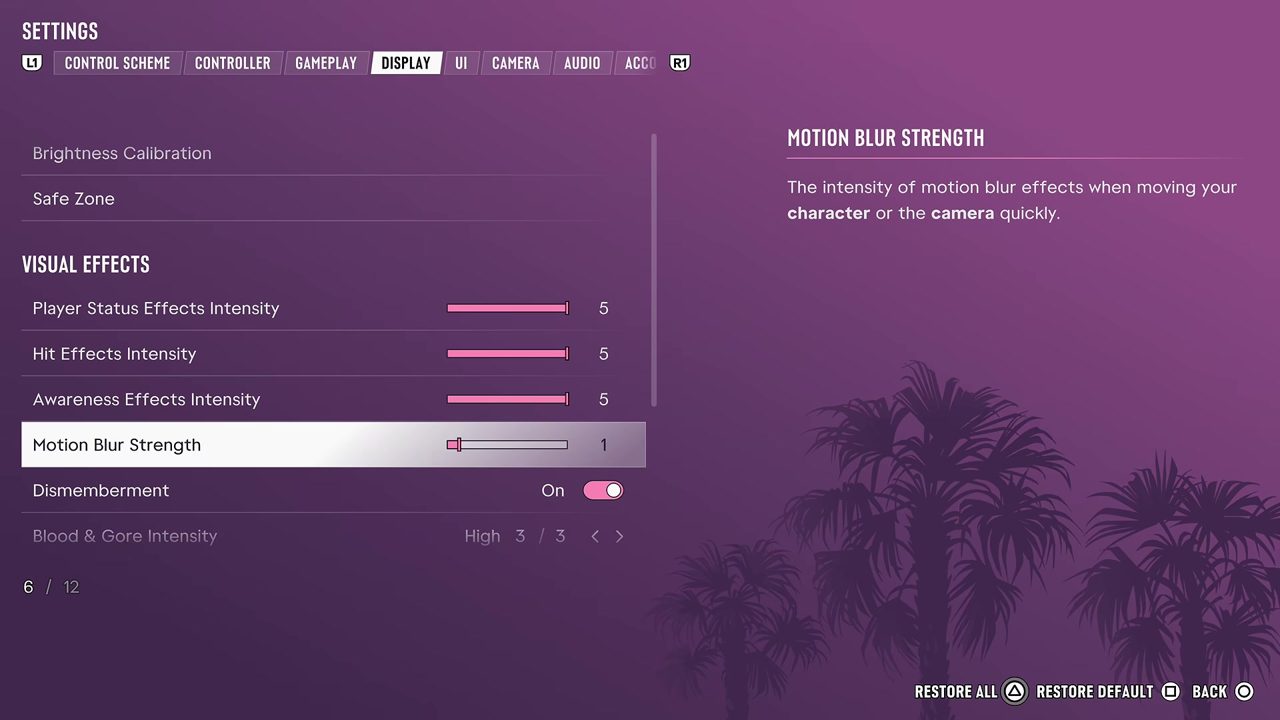
Settings → Display → Motion Blur Strength (default 3). At 30fps a little blur makes movement look smoother, so many players leave it. If it makes the picture feel smeared, turn it down rather than off first.
Step 4
Tame the camera if you feel sick
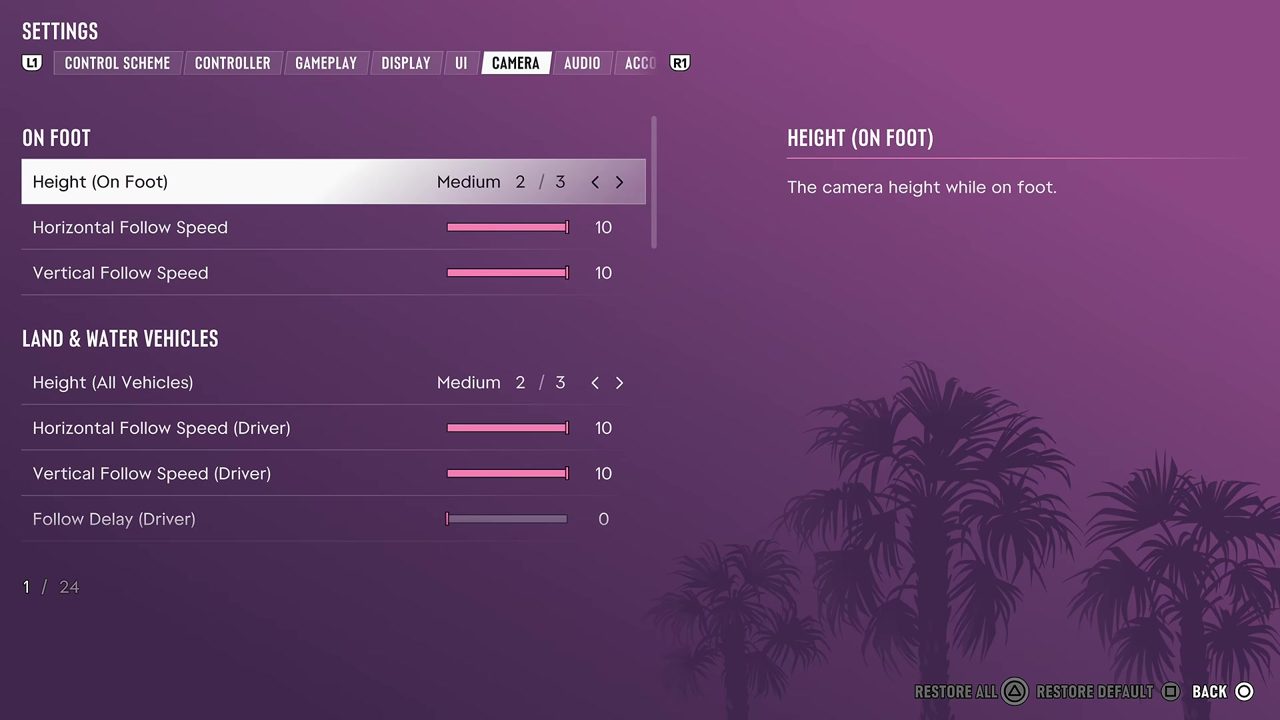
Settings → Camera. Camera shake and camera bob are part of how the game is meant to feel, so leave them unless you get motion sickness. Then lower both, and weapon sway too.
Step 5
Tidy up the screen
Under the interface settings you can change the subtitle size, the size of map blips and markers, and turn off pop-ups you don't want. Vibration and haptics strength are under Controller.
Mistakes that slow players down
- Calibrating HDR on the consoleGTA 6 ignores it. Use the in-game sliders.
- Trusting the HDR test screenPaper White changes the real peak brightness. Start from the values above.
- Looking for a performance modeThere isn't one. It's 30fps on every console.
Myths, checked
| Claim | Verdict |
|---|---|
| The PS5 Pro runs GTA 6 at 60fps. | False |
| Your console's HDR settings apply in GTA 6. | False |
| Lowering dead zones makes aiming more responsive. | True |